
Design Space: DIY with Cricut
CricutLifestyle
3.926.27K Reviews
- Version
- 6.72.0
- Installs
- 5.00M
- Age Rating
- Everyone
Screenshots

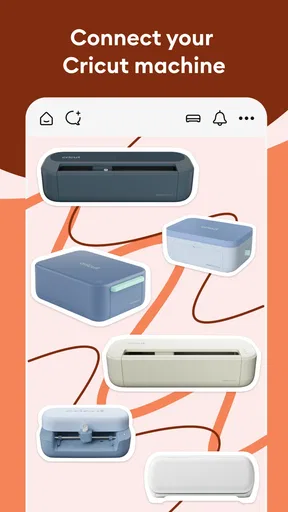

Our Review of Design Space: DIY with Cricut
 Analysis by Appyee
I find the biggest hurdle with Cricut projects is often not coming up with an idea but getting from a phone screen to a clean, finished cut. That is the practical lens I’d use for Design Space: DIY with Cricut: it brings design and machine preparation into one place, but it still asks you to make sensible choices before you commit material. If you are deciding whether it fits your routine, the key question is whether you want a mobile companion for Cricut crafting or a more open-ended drawing and layout tool.
Where a project can get stuck
The first slowdown tends to happen when a design looks right on screen but is not quite ready for the material or project you have in mind. A tiny detail that seems charming on a phone may become awkward to cut, weed, or place by hand. I would zoom in on small lettering and narrow shapes, then simplify anything that looks fragile before moving on. That small check can save more time than rushing straight to the machine.
It also helps to separate the creative decision from the production decision. I might make a design for a card, then realize that its spacing or scale suits a larger surface better. Before cutting, I would check the overall proportions and think through how the pieces will be positioned in real life. A digital preview is useful for planning, but it is not a substitute for considering the thickness, texture, and handling of the material on your worktable.
Quick checks before you begin
When the app and a Cricut machine do not seem to be cooperating, I start with the simple checks rather than rebuilding a project. I make sure I am signed into the account I expect to use, that the machine is powered on, and that Bluetooth is enabled on the phone. I also check that the phone is close enough to the machine and that no other device is confusing the connection. These are ordinary steps, but they help distinguish a connection hiccup from a design problem.
I would also look at the project itself before starting a cut. Confirm that the selected material matches what you have actually loaded, and check the mat or placement shown in the workflow against the setup on your table. If the preview looks crowded or a layer appears out of place, pause and inspect it instead of hoping the machine will correct it. A final visual check is the easiest way to catch preventable mistakes, especially when you are working with several colors or separate pieces.
Recovering without starting over
If a connection drops or a step is interrupted, I would first give the app a moment, then check whether the project is still open and whether the machine remains ready. Avoid tapping through the workflow quickly: it is easy to lose track of which stage has completed and which has not. If you are unsure, return to the project view and review the design before resuming. Keeping a note of the material and placement you had prepared can also help you re-create the setup without guessing.
For a project with multiple layers, I like to treat each layer as its own checkpoint. Finish and inspect one cut before moving to the next, rather than preparing every piece at once and discovering a mismatch at the end. This is particularly useful for small labels, cards, or decorations where alignment matters. It is not the fastest approach for every job, but it makes recovery less stressful and reduces the chance of wasting several prepared pieces because of one early mistake.
When the app may not be the problem
A disappointing result does not automatically mean the design or app has failed. Material that shifts, a surface that is not prepared as expected, or a cut that is difficult to handle can all affect the finished craft. I try a small test when I am using an unfamiliar material or a delicate design, then adjust the artwork or setup before committing to a larger piece. That is a more useful diagnosis than repeatedly changing settings without knowing what caused the issue.
The same goes for projects that look different from their on-screen preview. The app can help me plan, but my lighting, material color, and the way I assemble the pieces influence the final appearance. If exact placement is important, I lay out the cut pieces before attaching them and compare them with the design. That extra pause is especially worthwhile for gifts or decorations that need to look tidy from a short distance.
Getting Started with Design Space
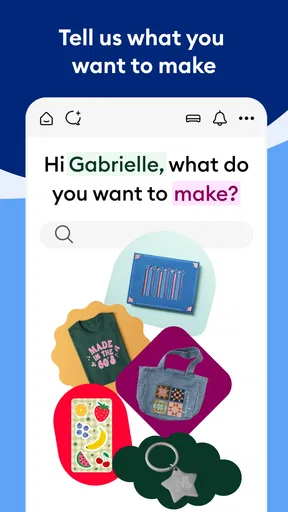
First things first, let’s talk about getting set up. Design Space: DIY with Cricut is available on both Android and iOS, which is super convenient. Once you download it, the setup is pretty straightforward. You’ll need to create an account if you're new to Cricut, or just log in if you’re already part of the Cricut family. Easy peasy!
The app itself is intuitive, with a sleek design that’s easy on the eyes. It's organized so that even if you’re a newbie, you can find your way around without getting lost in a sea of buttons and options. Trust me, I’ve been there with other apps!
The Creative Playground
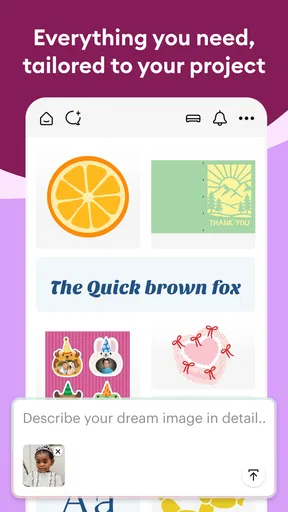
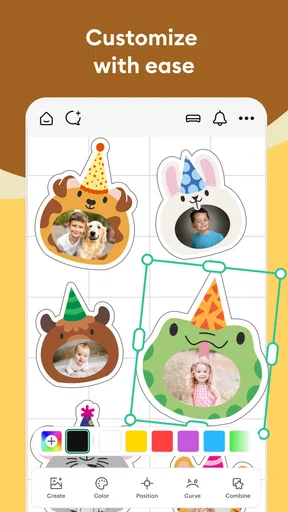
Now, onto the fun part – the creative playground. This is where the magic happens. You can choose from thousands of images and fonts, or if you're feeling extra creative, you can upload your own designs. The app supports a variety of file types, so you’ve got tons of flexibility.
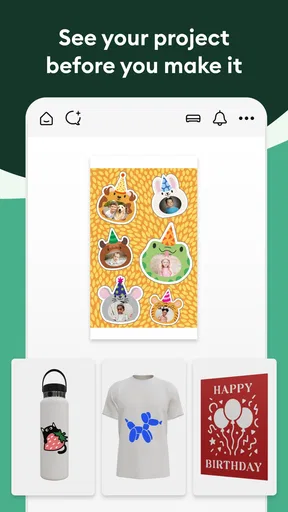
One of the standout features is the ability to preview your design on different materials. You can see exactly how it’ll look on vinyl, paper, or fabric before you even start cutting. This is a game-changer, especially if you’re like me and hate wasting materials.
Crafting Made Easy
"Crafting without the hassle is a crafter’s dream."Let me tell you, the integration with Cricut machines is seamless. Once your design is ready to go, you simply connect your app to your Cricut device and let it do its thing. The Bluetooth connectivity works like a charm, so you don’t have to worry about any frustrating connection issues.
The app also offers step-by-step instructions for projects, which is perfect for those days when you need a little extra guidance. Whether you’re working on a simple card or a complex 3D project, the instructions are clear and easy to follow.
Community and Inspiration
One of the things I love most about Design Space: DIY with Cricut is the community aspect. There’s a treasure trove of inspiration right at your fingertips. You can check out projects from other users, which is great for sparking your own creative juices.
The app also has a feature where you can save your favorite projects and share your creations with others. It’s like having your own little crafting club, minus the glue sticks and glitter explosions.
Who I’d recommend it to
I think this Lifestyle app makes the most sense for people who already own a Cricut machine, are considering one, or want to plan projects around Cricut’s design-and-cut workflow. Cricut develops it, and its focus is more specific than a general-purpose drawing app: the point is to prepare craft designs for use with Cricut equipment, not to replace every art or layout tool on your phone. If you mainly want to sketch freely, edit photos, or make graphics without cutting anything, a dedicated illustration or design app may feel less constrained.
A realistic use for me would be a last-minute handmade birthday card. I could choose a design, adjust its size for the card, and check the material preview before cutting. I would still leave time to assemble and inspect the pieces; the app can help plan the craft, but it cannot remove the hands-on work. For repeat projects, saving a favorite is useful because it gives me a starting point instead of making me hunt for the same idea again.
Choosing the right workflow
Compared with using a general graphics app and then moving artwork between tools, keeping the design in Cricut’s own workflow is convenient when the end goal is a Cricut cut. It reduces the number of handoffs and makes the project guidance easier to follow. The trade-off is that a dedicated design app may offer more comfortable free-form drawing or detailed image editing. I would use those tools when the artwork itself is the main challenge, then turn to Design Space when I am ready to prepare a Cricut project.
For newcomers, the free price makes it reasonable to explore the interface before investing time in a larger craft. The app is rated for Everyone, and its average rating is 3.9 from around 85,000 ratings, with roughly 26,000 written reviews. It has passed 5 million installs. Those figures suggest plenty of people have tried it, but they do not tell me whether every workflow will suit my needs; the best test is to plan a small project that matches the machine and materials I actually have.
There is also a cost consideration beyond downloading it: in-app purchases range from $0.99 to $399.99 per item. I would check what a particular project requires before assuming every image, font, or resource is included at no extra cost. If you want to keep spending predictable, start with a simple design and review any purchase prompt carefully rather than tapping through it. The app is free to install, but that does not mean every optional item has the same price or availability.
What to expect from everyday use
One useful habit is to make a quick test cut when a design has fine details or when I have changed materials. It gives me a chance to judge whether the scale is practical and whether the pieces are manageable before I use more material. Another is to keep a project modest the first time I use a new workflow. A small card or label is easier to troubleshoot than a large decoration with many separate parts.
The app’s current version is 6.45.0, and it supports devices running Android 9 or later. I would check compatibility before building a project around a phone I rarely use, particularly if I plan to work at a table and keep the screen nearby. The experience is most helpful when the phone stays accessible during setup; if you prefer a larger workspace for intricate arranging, using a computer-based workflow may be more comfortable.
Final Thoughts
So, is Design Space: DIY with Cricut worth the download? Absolutely! Whether you’re a seasoned crafter or just starting out, this app has something for everyone. It’s user-friendly, packed with features, and connects you with a vibrant community of fellow creators.
If you’re ready to take your crafting to the next level, give it a whirl. Who knows? Your next masterpiece might just be a few taps away. Happy crafting!
My practical verdict is that it is most rewarding when a Cricut machine is already part of your routine and you want project planning, design choices, and machine preparation close together. I would not choose it as my only creative app if I mostly draw or make digital graphics with no intention of cutting them. For Cricut owners, though, starting with a small, low-stakes project is a sensible way to learn where the app helps and where careful material handling still matters. Once that distinction is clear, it becomes easier to enjoy the creative part without expecting the phone to solve every craft problem.
Verdict
Strengths of Design Space: DIY with Cricut
- User-friendly interface for beginners.
- Extensive library of design templates.
- Seamless connectivity with Cricut devices.
- Regular updates with new features.
- Robust community support and tutorials.
Limitations of Design Space: DIY with Cricut
- Requires internet for full functionality.
- Limited features on the free version.
- Occasional syncing issues with devices.
- Complex projects can be time-consuming.
- Steep learning curve for advanced tools.
Similar Picks in This Category
View All
SmartThings
Samsung Electronics Co., Ltd.4.6

Google Home
Google LLC4.0

Pinterest4.2

Astrotalk - Talk to Astrologer
Astrology & Horoscope4.7

My Verizon
Verizon Consumer Group4.5

Samsung Wallet (Samsung Pay)
Samsung Electronics Co., Ltd.4.1
Frequently Asked Questions
What is Design Space: DIY with Cricut?
Design Space: DIY with Cricut is a companion app for Cricut cutting machines, allowing users to create custom designs for crafts, home decor, and more. The app provides a wide range of tools and templates for beginners and experienced users alike, making it an essential tool for DIY enthusiasts.
Is Design Space free to use?
The Design Space app itself is free to download and use, offering a variety of tools and basic templates. However, some premium features and advanced design elements require a Cricut Access subscription, which provides access to exclusive designs and additional functionality.
What devices are compatible with Design Space?
Design Space is available for both Android and iOS devices. Ensure your device meets the minimum operating system requirements: iOS 13.0 or later for Apple devices and Android 8.0 or later for Android devices. Compatibility with your specific Cricut machine is also necessary for seamless operation.
Can I use Design Space offline?
Design Space requires an internet connection for most of its features, including accessing the library of designs and syncing projects. However, you can download projects to work on offline, allowing for some level of creativity without being connected to the internet.
How user-friendly is Design Space for beginners?
Design Space is designed with user-friendliness in mind, offering intuitive navigation and tutorials to help beginners get started. The app includes step-by-step guides and a supportive community, making it accessible for users at all skill levels to create stunning DIY projects.
